Windows how-to guide
Use Digital Gun Vault on Windows.
This guide is based on the current pre-release Windows desktop workflow for Digital Gun Vault. The app stores inventory in encrypted `.dgv` vault files that remain under your control.
Digital Gun Vault is a recordkeeping tool only. It is not legal advice, not transfer authorization, and not an ATF filing system.
Screenshots
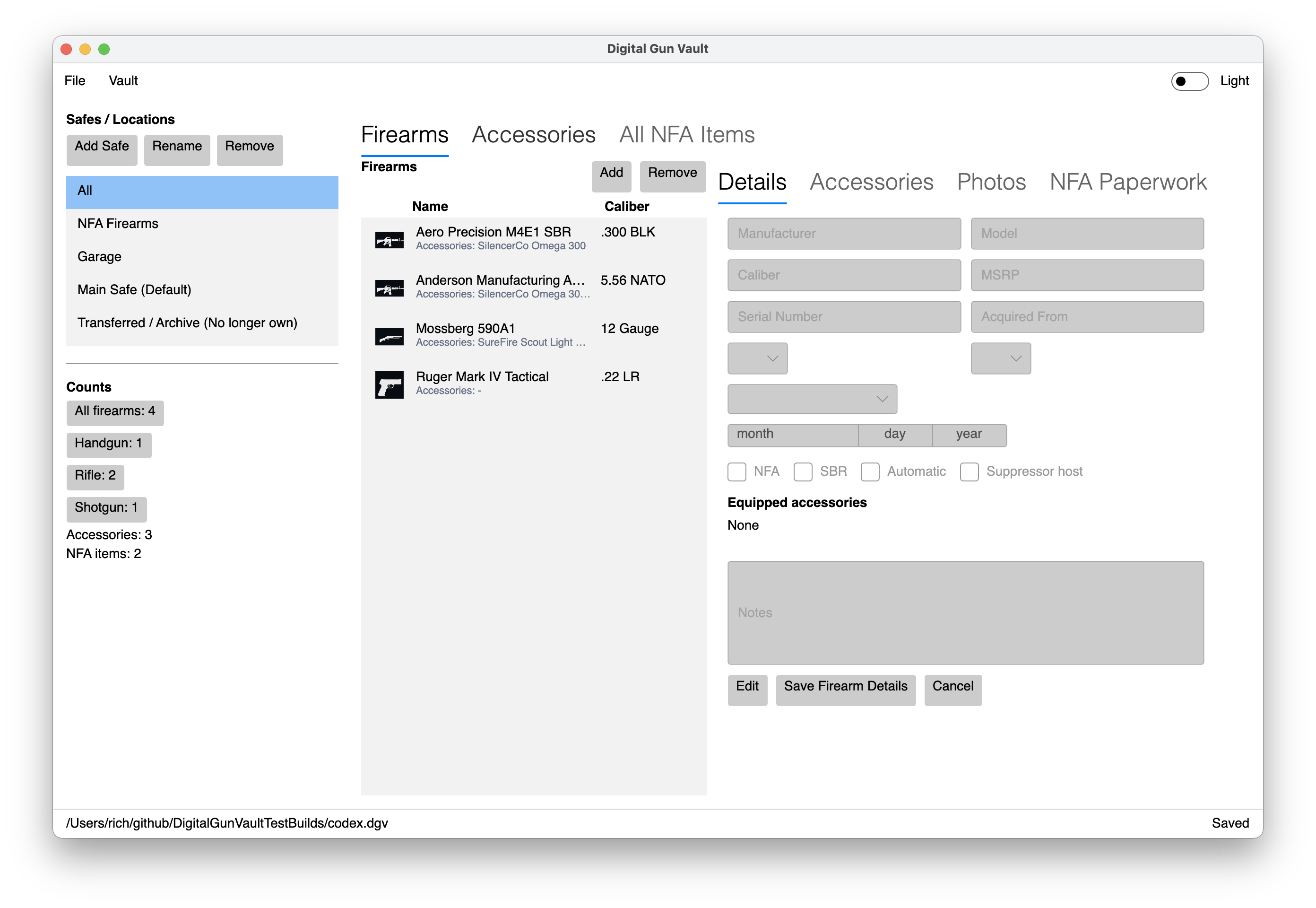
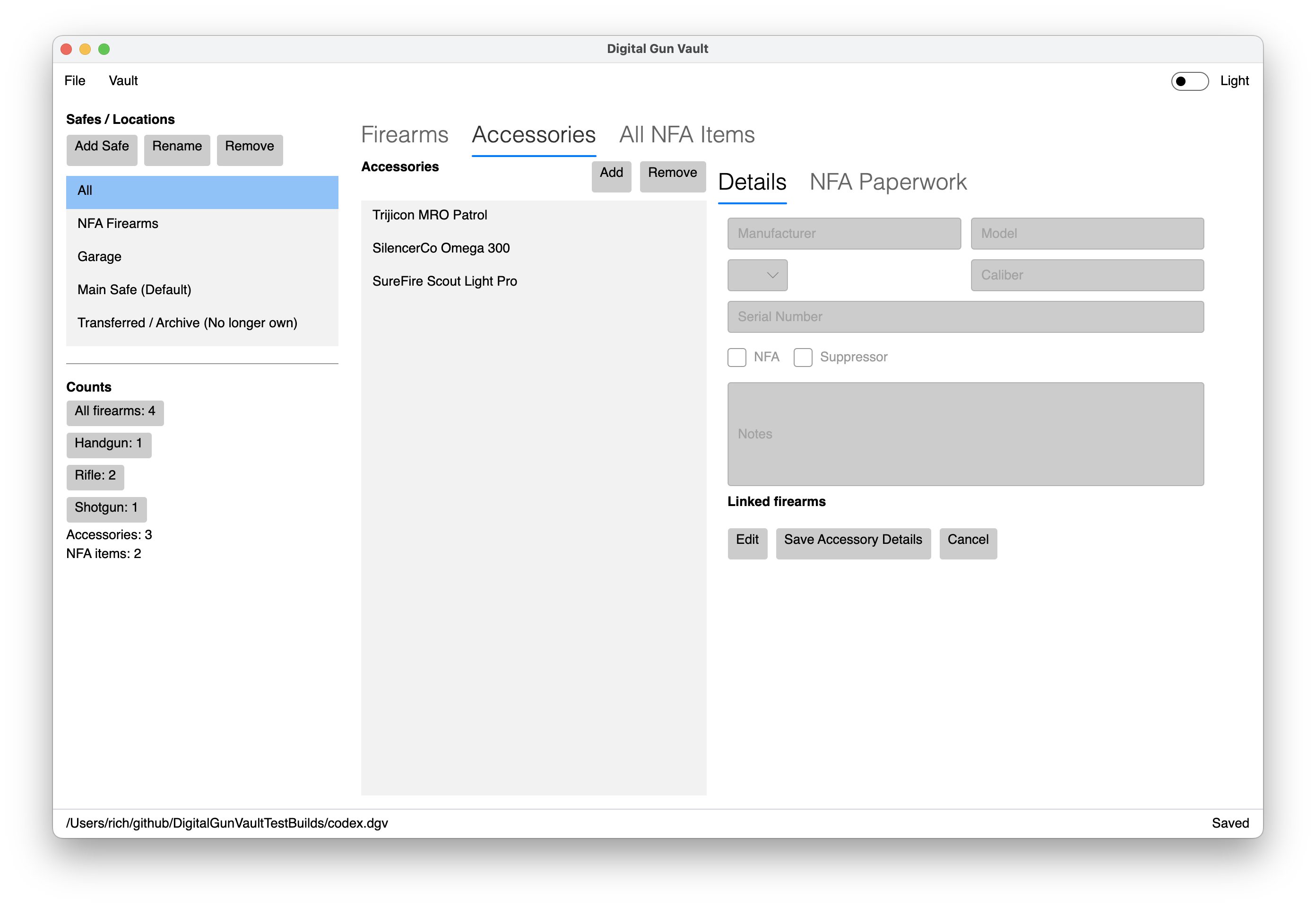
Windows app preview
These previews use a sample vault to show the current desktop layout without displaying any private vault records.
Vault files
Create, open, and save a vault
- Open the Windows app and choose File, then New vault.
- Set a master password when prompted. Store the generated recovery password somewhere separate from the `.dgv` file.
- Choose File, then Save or Save As to write the encrypted `.dgv` vault file.
- Use File, then Open vault to reopen an existing vault.
- Use File, then Recover with Recovery Key if you need to unlock a vault with the recovery password.
A recently opened vault can use a Windows-protected convenience unlock for up to 24 hours. The app does not store the master password for this feature.
Firearms tab
Add and maintain firearm records
- Select the Firearms tab.
- Use the Details tab to enter manufacturer, model, caliber, MSRP, serial number, date acquired, type, primer, storage label, acquired from, and notes.
- Set NFA-related flags when needed: NFA item, SBR, Automatic, and Suppressor Host.
- Click Save in the firearm actions row to keep changes in the open vault session.
- Choose File, then Save to encrypt the updated vault file.
The firearm grid shows type icon, manufacturer, model, caliber, and storage label. Select a row to edit its details, photos, paperwork, and linked accessories.
NFA flags are user-maintained record fields. Digital Gun Vault does not determine item status, lawful possession, transferability, or filing status.
Photos and paperwork
Attach photos and NFA documents
- Select a firearm record.
- Open the Photos tab and click Attach to add firearm images. Select an image to preview it, or use Remove to delete it from the record.
- Open the NFA Paperwork tab and click Attach to add PDF or image paperwork.
- Use Open to view an attached document, or Remove to delete it from the vault record.
NFA paperwork attachments stay in the user's vault record. Digital Gun Vault does not review, validate, submit, or store ATF filings for users.
Accessories tab
Track accessories and link them to firearms
- Select the Accessories tab.
- Enter manufacturer, model, type, caliber, serial number, NFA status, suppressor status, linked firearms, and notes.
- Use the Linked Firearms checklist to associate one accessory with multiple firearms.
- For suppressors, mark the accessory as Suppressor before adding NFA paperwork.
- Save the accessory edit, then save the vault from the File menu.
Supported accessory types include scope, red dot, suppressor, light, sling, magazine, and other.
All NFA Items tab
Review NFA records in one place
Use the All NFA Items tab for a combined view of firearms and accessories marked by the user as NFA items. Use the NFA Firearms filter in the left safes panel when you only want NFA firearm records.
Recordkeeping only. Not legal advice, not transfer authorization, and not an ATF filing.
Safes menu
Organize records by storage label
- Open Safes, then choose Add Safe / Location to create a storage label tab.
- Use Rename Selected Safe to update the selected storage label name.
- Use Set Selected Safe as Default when most new firearms belong in that location.
- Use Remove Selected Safe to remove a storage label and move its firearms to another label.
The Windows app supports configured storage-label filters, plus All and NFA Firearms views. The counts panel summarizes total firearms, firearms by type, accessories, and NFA items.
File menu
Import, export, and print
- Choose File, then Import firearms from Excel to import firearm records from the first worksheet of an `.xlsx` file.
- Choose File, then Export encrypted vault to write an encrypted `.dgv` copy.
- Choose File, then Export Excel to pick a save location and export selected firearm fields to `.xlsx`.
- Choose File, then Export PDF or Print for a readable inventory report.
Excel and PDF exports are not encrypted by Digital Gun Vault. Treat them as sensitive plaintext and store or delete them accordingly.
Security basics
Protect your vault and recovery password
- Keep your `.dgv` vault file backed up in at least one safe location.
- Store the recovery password separately from the vault file.
- Use Options, then Change Password when you need to rotate the master password.
- Use Options, then Show Recovery Key only when the app has recovery material available to show.
- Use Options to choose system, light, or dark theme.
Digital Gun Vault encrypts vault payloads at rest and verifies authentication before inventory data is parsed. See the security page for cryptography details and source references.