macOS how-to guide
Use Digital Gun Vault on macOS.
The pre-release macOS app opens encrypted `.dgv` vaults, keeps records local, and supports the same vault format used by the other desktop builds.
Digital Gun Vault is a recordkeeping tool only. It is not legal advice, not transfer authorization, and not an ATF filing system.
Screenshots
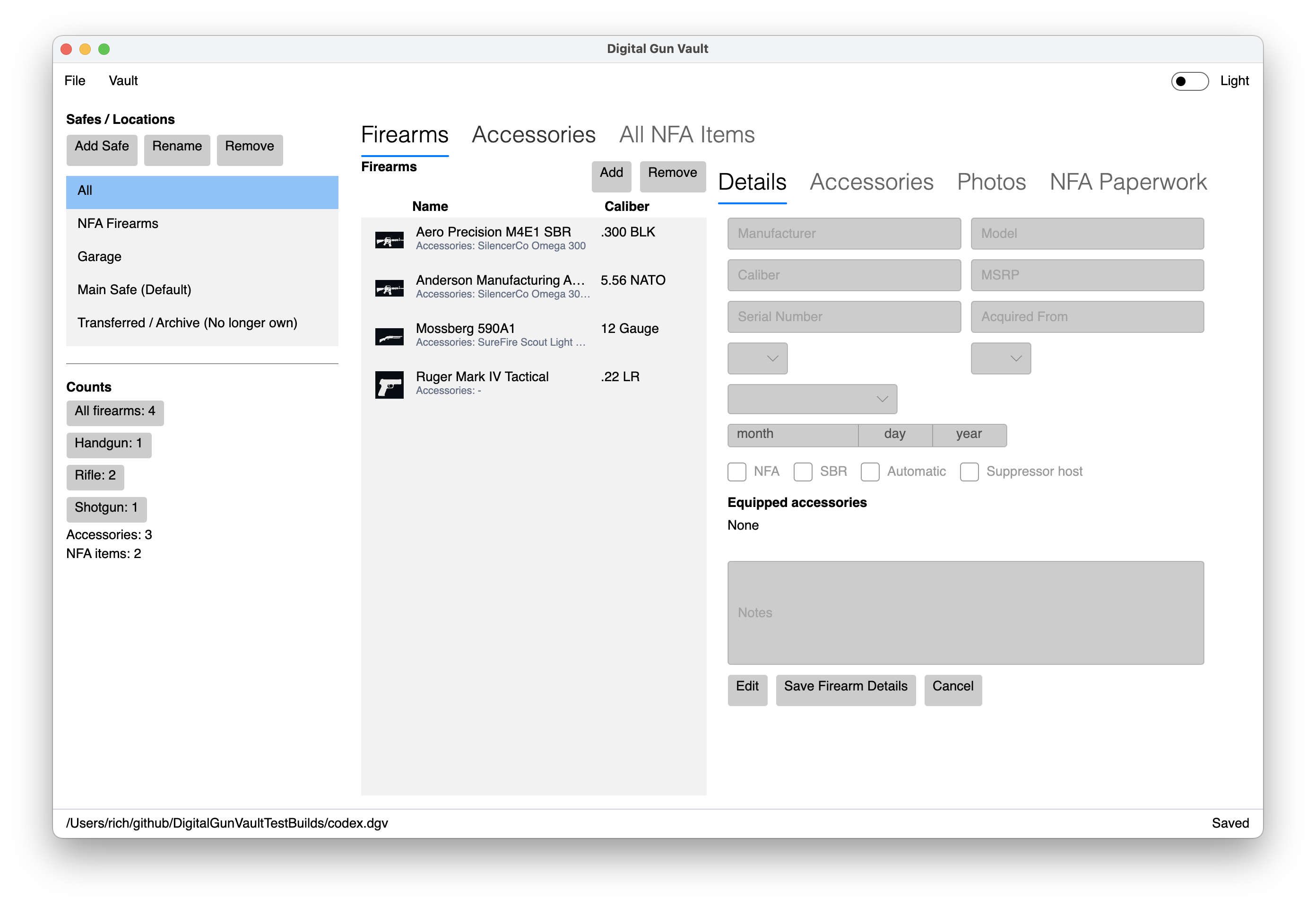
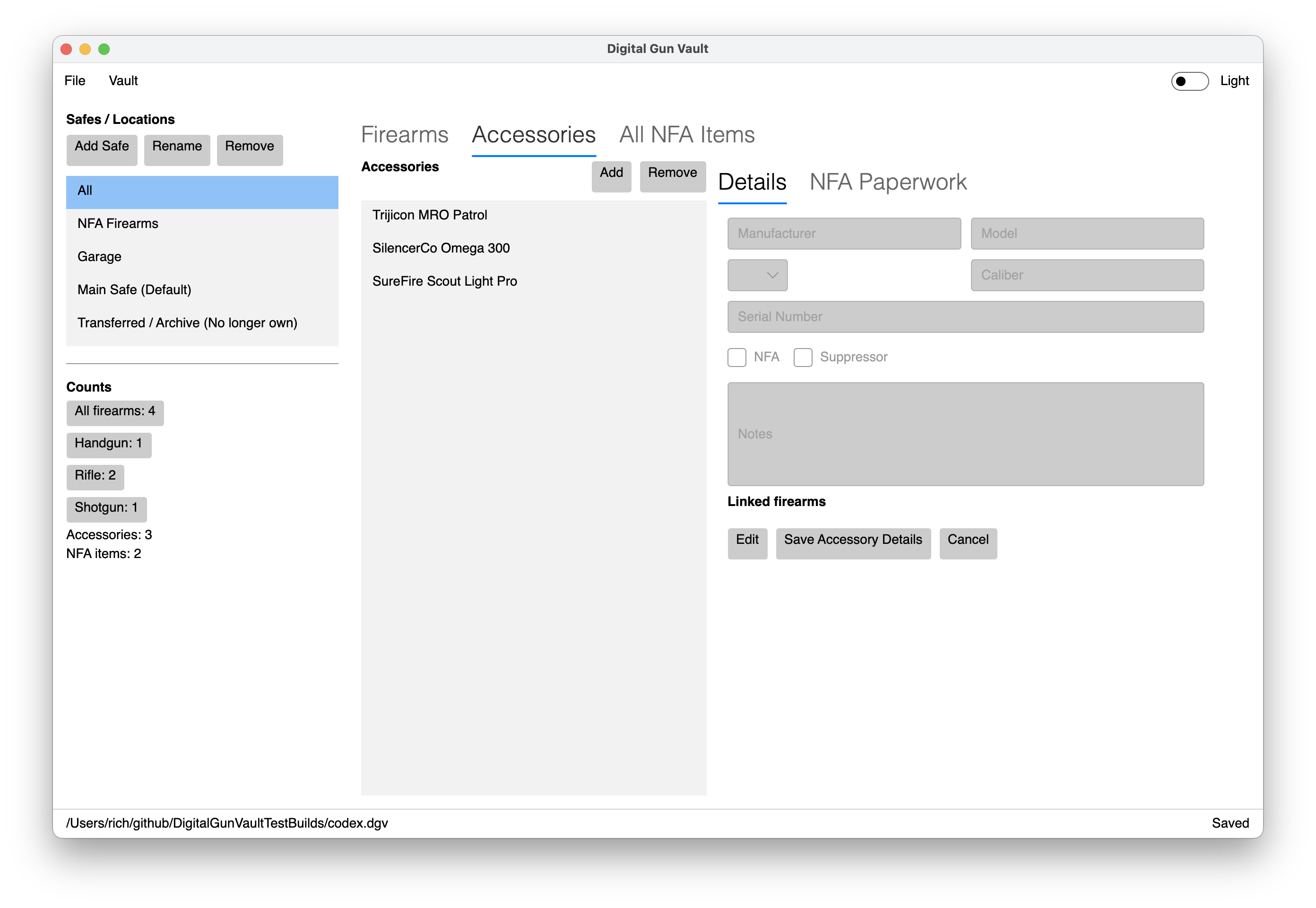
macOS app preview
These screenshots were captured from the current pre-release macOS app using a sample vault.
Vault files
Create, open, and save a vault
- Use File, then New Vault to create an encrypted vault.
- Set a master password and store the generated recovery password separately.
- Use File, then Open Vault to open an existing `.dgv` file.
- Use File, then Save or Save As after edits.
The status bar shows the active vault path and save state so you can verify which file is open.
Firearms tab
Add and maintain firearm records
- Select Firearms, then choose Add.
- Use Details for manufacturer, model, caliber, MSRP, serial number, acquired from, type, primer, storage label, date acquired, NFA flags, and notes.
- Open Photos to attach and preview firearm images.
- Open NFA Paperwork to attach PDF or image paperwork.
- Click Save Firearm Details, then save the vault file.
NFA flags are user-maintained record fields. Digital Gun Vault does not determine item status, lawful possession, transferability, or filing status.
Accessories tab
Track accessories and linked firearms
- Select Accessories, then choose Add.
- Enter manufacturer, model, type, caliber, serial number, NFA status, suppressor status, and notes.
- Use the linked firearms controls to connect optics, suppressors, lights, and other accessories to firearm records.
- Attach accessory paperwork from the NFA paperwork workspace when needed.
Attached paperwork is kept for the user's records only. Digital Gun Vault does not review, validate, submit, or store ATF filings for users.
All NFA Items tab
Review NFA records in one place
The All NFA Items tab combines firearms and accessories marked by the user as NFA items. The NFA Firearms filter in the safes panel narrows the firearm list to NFA firearms only.
Recordkeeping only. Not legal advice, not transfer authorization, and not an ATF filing.
Storage labels
Filter records and review counts
- Use Add Safe, Rename, and Remove to manage storage labels.
- Choose All, NFA Firearms, or a specific storage label to filter the firearm list.
- Review the counts panel for total firearms, firearm types, accessories, and NFA items.
Exports
Choose where exported files are saved
Export actions open a macOS file picker so you can choose the destination. Excel and PDF exports are plaintext output files, so store them carefully and delete temporary copies when you are finished.
Security basics
Protect your vault and recovery password
- Keep the `.dgv` vault backed up somewhere safe.
- Store the recovery password separately from the vault file.
- Use Touch ID convenience unlock only on Macs you trust.
- Use the light/dark theme toggle in the top-right app chrome when you need a different visual mode.
Digital Gun Vault encrypts vault payloads at rest and verifies authentication before inventory data is parsed. See the security page for implementation details.